

Network
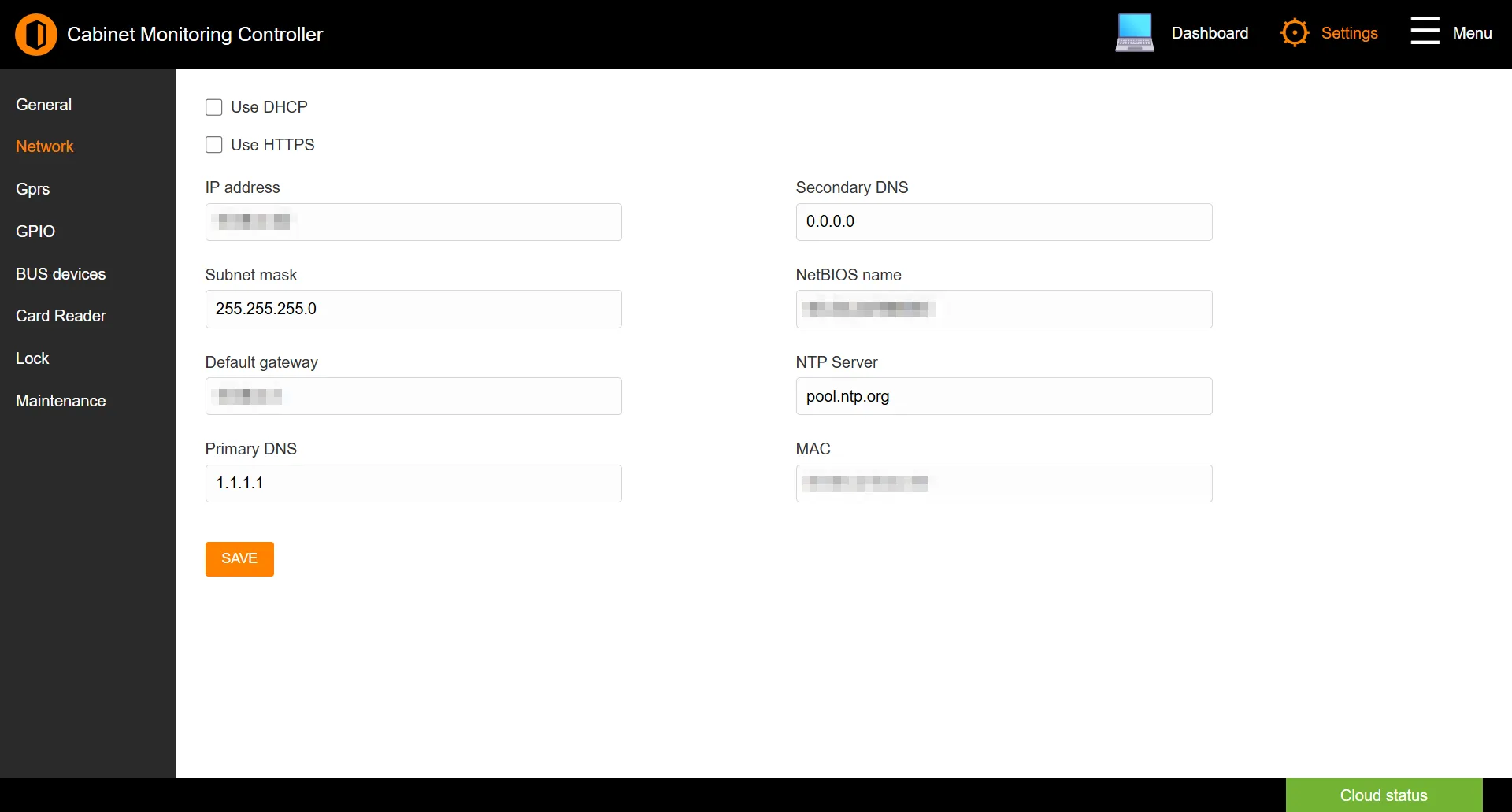
The Network page sets how the controller appears on your network - its addressing, name resolution, and whether the web interface is served over HTTPS.
Path: Settings → Network
Addressing
| Option | Description |
|---|---|
| Use DHCP | When enabled, the controller takes its address from your network’s DHCP server, and the manual address fields are disabled. Turn it off to assign a static address. |
| Use HTTPS | Serves the web interface over an encrypted HTTPS connection. Recommended, and enabled by default. |
With DHCP off, fill in the static addressing fields:
| Field | Description |
|---|---|
| IP address | The controller’s static IPv4 address. |
| Subnet mask | The network’s subnet mask. |
| Default gateway | The gateway the controller routes through. |
| Primary DNS / Secondary DNS | Name-resolution servers. |
Naming and time
| Field | Description |
|---|---|
| NetBIOS name | A friendly network name for the controller. |
| NTP Server | The time server the controller synchronises its clock with. |
| MAC | The controller’s hardware address, shown read-only. |
Note: Changing the IP address moves the interface to a new address. After saving, browse to the controller at its new address to continue.
Click SAVE to apply changes.
See also: Accessing the Interface | General | Gprs