

Groups
The Groups tab lists all access groups in the system. Each group ties a set of users to a set of physical locations - optionally restricted by a time-based schedule. All location access in the Access module flows through groups.
Tip: Manage access through groups rather than assigning locations to users individually. Groups are easier to audit, update in bulk, and hand over when staff changes.
Group Information
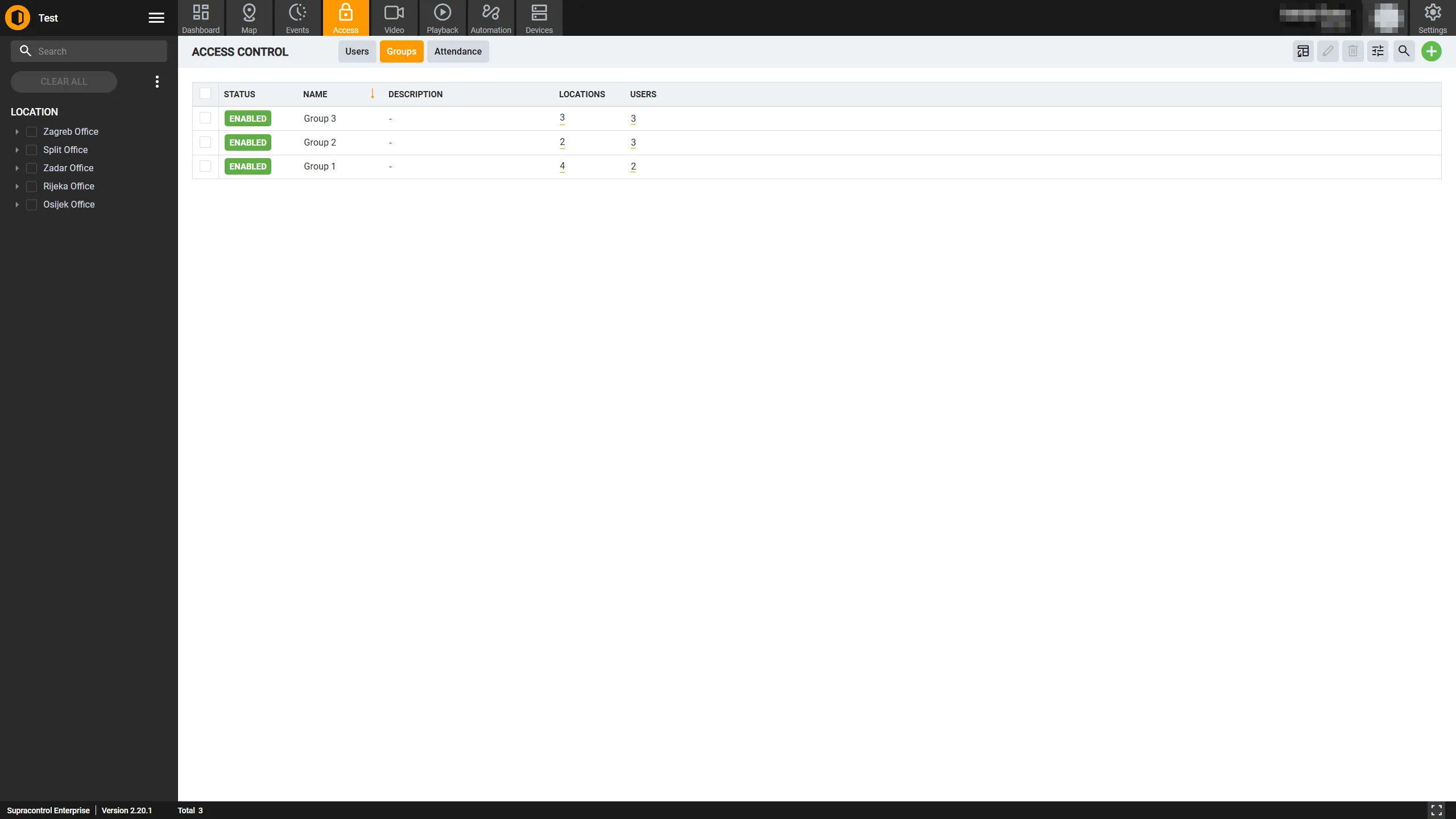
Each group record displays:
| Field | Description |
|---|---|
| Name | A unique, descriptive name for the group. |
| Description | Optional free-text description. |
| Status | Enabled or Disabled. Disabled groups do not grant access. |
| Locations | Number of locations assigned. Click to open a location tree view. |
| Users | Number of users in the group. Click to open the full user list. |
Group Status
| Status | Meaning |
|---|---|
| Enabled | The group is active; its users can access the assigned locations. |
| Disabled | The group is inactive; no access permissions are granted through it. |
Toolbar Actions
| Icon | Control | Description |
|---|---|---|
 | Add | Opens the Create Group dialog. Not available to Application Manager users. |
 | Edit | Opens the Edit Group dialog for the selected group. Only available when exactly one group is selected. |
 | Delete | Permanently removes the selected group. Only available when exactly one group is selected. Cannot be undone. |
 | Export to Excel | Downloads the group list, respecting any active filters, as an .xlsx file. |
 | Table Settings | Opens the column and row settings panel - show/hide columns, reorder, set rows per page. |
A search bar in the toolbar filters the group list in real time by name.
Filtering Groups
- Location filter - Show only groups that include specific locations.
- Status filter - Show only Enabled or Disabled groups.
For step-by-step procedures - creating, editing, and deleting groups - see Managing Groups.