

Users
The Users tab is the primary workspace for managing access users. Use it to view all users, monitor their status and group memberships, and navigate to creation and editing workflows.
Switching View Modes
Use the view toggle button in the toolbar to switch between the two available layouts:
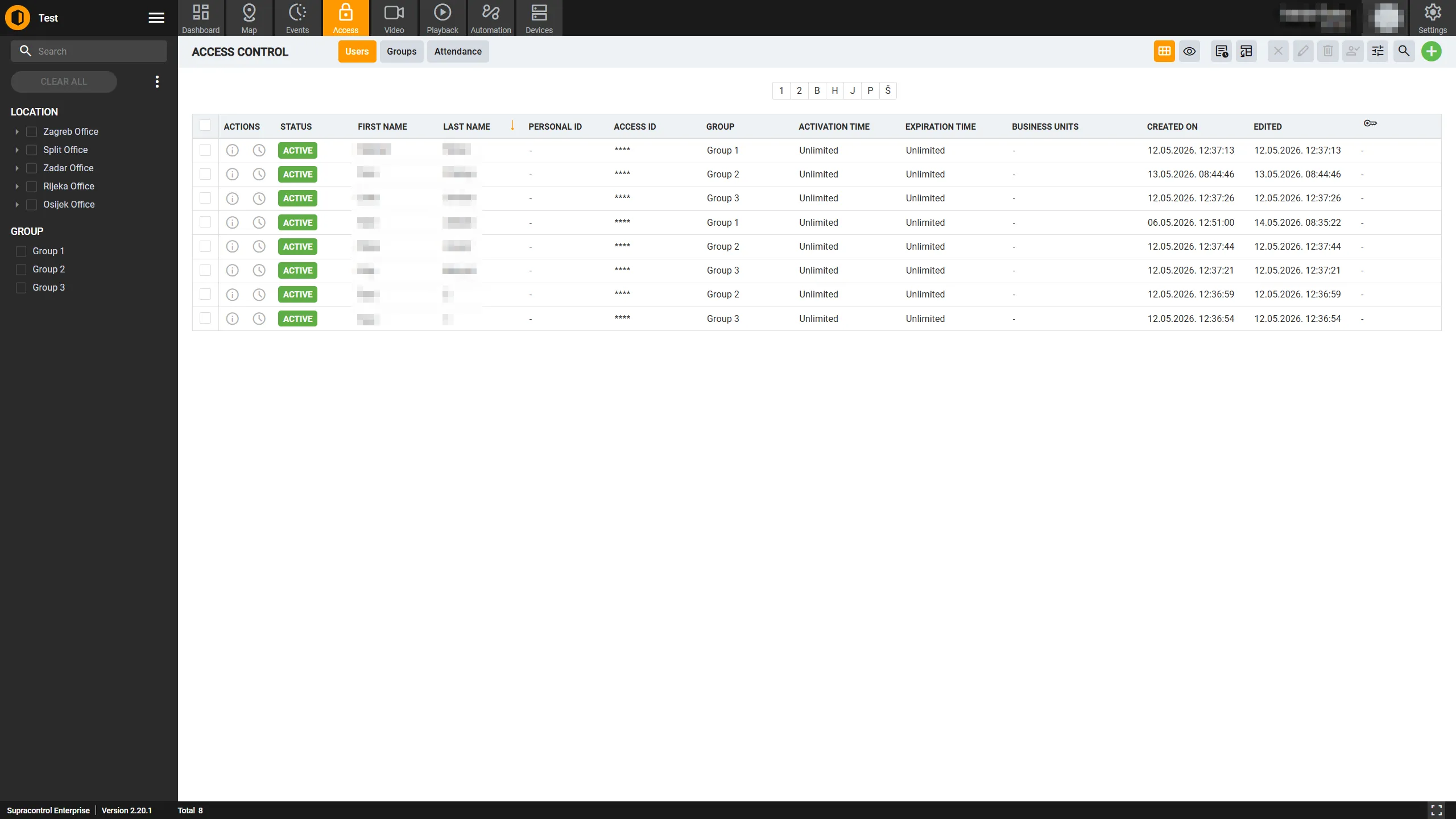
- Table View A full data grid displaying all user information in rows and columns. Best for bulk operations, sorting, and detailed comparisons.
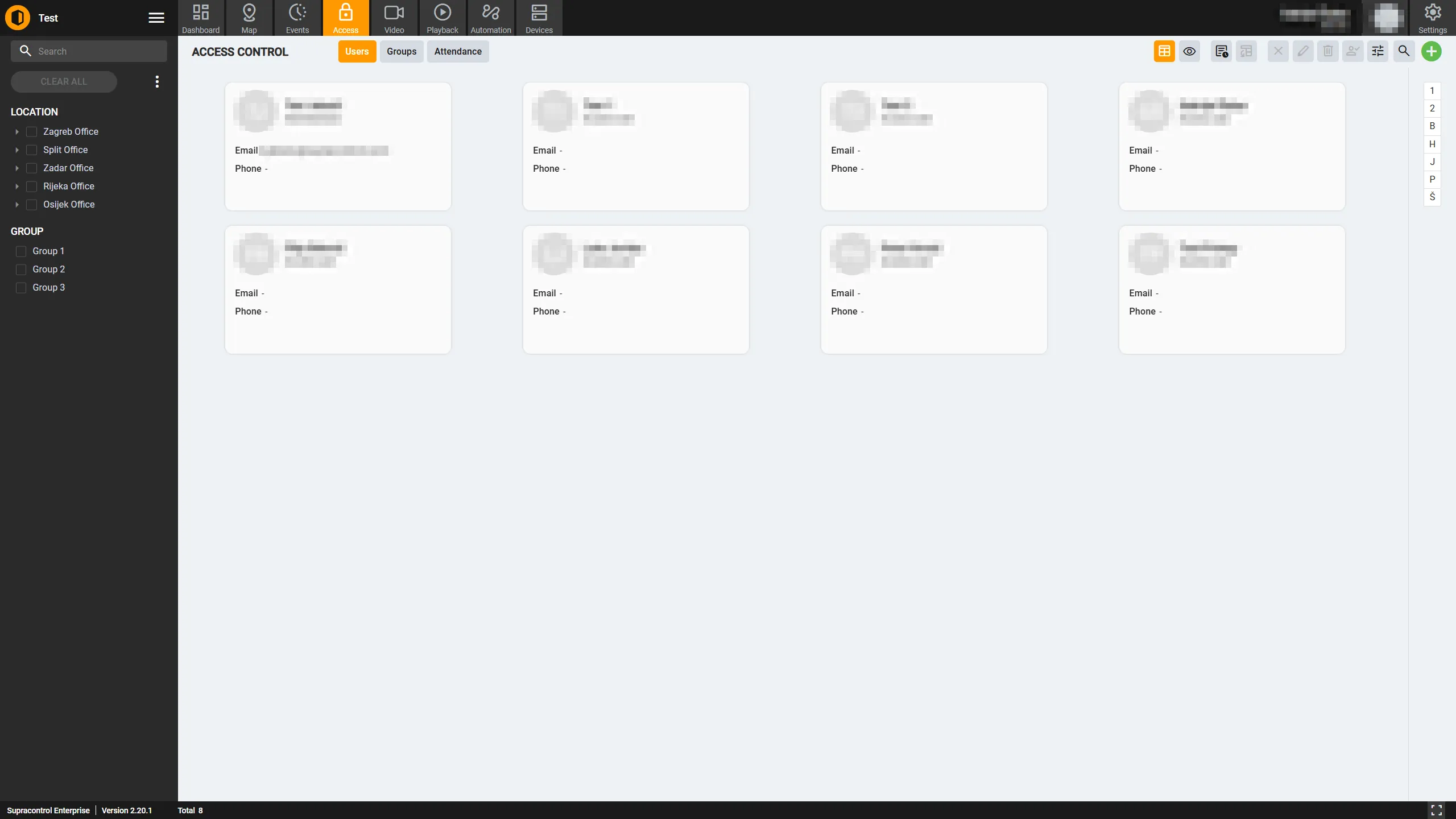
- Card View A visual, card-based layout that organises users alphabetically. Best for browsing and quickly identifying individual users.
Your view preference is saved automatically in your browser and restored on your next visit.
The table view displays all users in a data grid:
The card view organises users alphabetically by name:
User Information
Each access user record contains the following information:
| Field | Description |
|---|---|
| First & Last Name | The user’s full display name. |
| Contact email address. | |
| Phone | Contact phone number. |
| Status | Current access status: Active, Inactive, Expired, or Disabled. |
| Valid From / Valid To | The date range during which the user is authorised. Blank means unlimited. |
| Groups | The access groups the user belongs to. |
| Locations | Physical locations the user can access, inherited from group assignments. |
| Cards | Up to four access cards (ID + code) linked to this user. |
| Roles | Permission roles assigned to this user. |
| Business Unit | Visible to administrators only; indicates the user’s organisational unit. |
| Created / Edited | Timestamps showing when the record was created and last modified. |
User Status Indicators
The status badge on each user record reflects their current access state:
| Status | Meaning |
|---|---|
| Active | The user is currently within their valid period and has full access. |
| Inactive | The ValidFrom date is in the future; the user cannot access yet. |
| Expired | The ValidTo date has passed; access is no longer granted. |
| Disabled | An administrator has manually disabled the user account. |
Searching and Filtering
Several mechanisms are available to narrow down the user list:
-
Search bar Type a name, email, or phone number to instantly filter the list in real time.
-
Location filter Select one or more locations from the hierarchical location tree to show only users with access to those locations.
-
Status filter Filter by one or more status values (Active, Inactive, Expired, Disabled).
-
Group filter Show only users who belong to selected access groups.
-
Alphabet filter (Card View) Click a letter to display only users whose first or last name starts with that character. Toggle between First / Last name ordering as needed.
Active filters are highlighted visually. Click Clear All Filters to remove all active filters at once. Filter selections are saved in your browser and restored on your next session.
Toolbar
The toolbar above the user list provides the following controls:
| Icon | Control | Description |
|---|---|---|
 | View Toggle | Switches between Table View (data grid) and Card View (alphabetical card layout). |
 | Add | Opens the Create User dialog. |
 | Export to Excel | Downloads the current user list, respecting any active filters, as an .xlsx file. |
 | Export to PDF | Generates a formatted PDF report of the current user list. |
 | Table Settings | Opens the column and row settings panel - show/hide columns, reorder, set rows per page. |
A search bar in the toolbar filters the user list in real time by name, email, or phone number.
Row-Level Actions
Each row in the user list provides two icon buttons in addition to the selection checkbox:
- Info Opens a side panel showing the full details of the selected user.
- Events Opens a side panel listing the complete access event history for the selected user, including timestamps and locations.
For step-by-step procedures - creating, editing, disabling, and deleting users - see Managing Users.
For managing access cards linked to users, see Access Cards.