

Location Manager
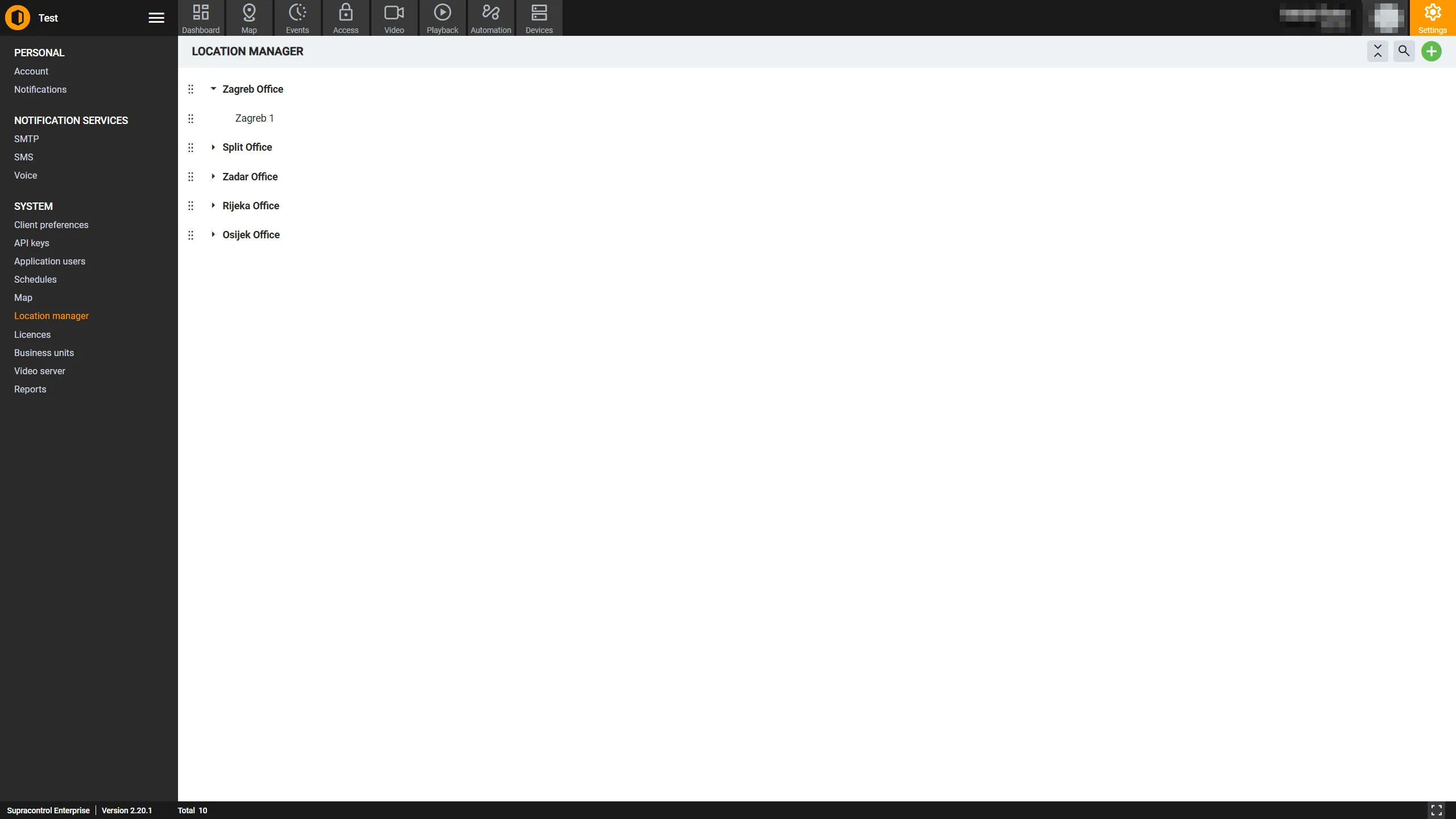
The Location Manager is where you define and maintain the location hierarchy for your Supracontrol installation. Locations are the foundational organisational structure - devices, cameras, sensors, users, and Business Units are all assigned to locations.
Path: Settings → Location Manager
What is a location?
A location is a named node in a tree that represents a physical or logical place - for example, a building, floor, or room. Every device, camera, and sensor in Supracontrol is assigned to a location. User access can be scoped to specific locations (with optional time restrictions). Business Units are built around groups of locations.
Headquarters├── Building A│ ├── Floor 1│ │ ├── Server Room│ │ └── Reception│ └── Floor 2│ ├── Open Office│ └── Conference Room B└── Building B ├── Parking Level 1 └── EntranceToolbar
Page toolbar
| Icon | Tool | Description |
|---|---|---|
 | Add Root Location | Creates a new top-level location with no parent |
 | Expand All | Expands all collapsed tree nodes so all locations are visible |
 | Collapse All | Collapses all expanded tree nodes. Disabled when nothing is currently expanded |
A search bar filters the tree in real time, showing only locations that match the search term.
Inline row actions
Each location row has its own action buttons:
| Icon | Tool | Description |
|---|---|---|
| Add Child Location | Creates a new location as a child of this one |
 | Edit | Opens the edit dialog for this location |
 | Delete | Deletes this location |
 | Business Unit Info | Shows which Business Unit this location is currently assigned to. Only visible when the location is assigned to a BU |
Create a root location
A root location has no parent and sits at the top of the hierarchy.
Open Location Manager
Go to Settings → Location Manager.
Add a root location
Click the Add Root Location button in the toolbar.
Fill in and save
Enter the location Name (required) and an optional Description. Click Save. The new root location appears at the top level of the tree.
Create a child location
A child location sits beneath a parent location in the hierarchy.
Find the parent location
Locate the parent location in the tree, expanding nodes as needed.
Add a child
Click the Add Child Location button on that location’s row.
Fill in and save
Enter the child location’s Name and optional Description. Click Save. The child location appears nested under the parent.
Edit a location
Find the location in the tree
Use the search bar or expand tree nodes to locate the location.
Open the edit dialog
Click the Edit button on the location’s row.
Update and save
Update the Name and/or Description and click Save.
Delete a location
Find the location in the tree
Locate the location you want to remove.
Delete and confirm
Click the Delete button on the location’s row and confirm the deletion.
Cascading effects of deletion
- Child locations: If the location has children, you will be prompted to confirm. Child locations may be deleted or re-parented depending on system configuration
- Devices and cameras: Assigned devices and cameras become unassigned
- Users: Users who had access to this location via assignment lose that specific access
- Business Unit: The location is removed from its Business Unit if it was assigned to one
Plan deletions carefully when a location has many child locations and assigned devices.
Assigning a location to a Business Unit
Locations are assigned to Business Units from within the Business Unit management screen - not from Location Manager directly. However, Location Manager shows a Business Unit Info icon on any location that is currently assigned to a BU. Clicking it reveals the BU name.
To assign or change a location’s BU membership, go to Settings → Business Units and edit the relevant Business Unit.
Role restrictions
| Role | Capabilities |
|---|---|
| Administrators and Owners | Can create, edit, and delete any location |
| BU Admins | Can view locations in their Business Unit. The Add Root Location button is hidden |
| Users and Viewers | Can see locations they have been granted access to, but cannot make changes |
Tips for building your location hierarchy
- Match reality: design the hierarchy to mirror your physical site (building → floor → room) or logical structure (region → site → zone)
- Plan before you build: changing the hierarchy after devices are assigned requires careful re-assignment
- Use consistent naming: “Building A - Floor 1 - Server Room” is clearer than shorthand codes for most users
- Keep depth manageable: 3–4 levels deep is usually sufficient; very deep hierarchies can make the UI cumbersome