

Notifications Overview
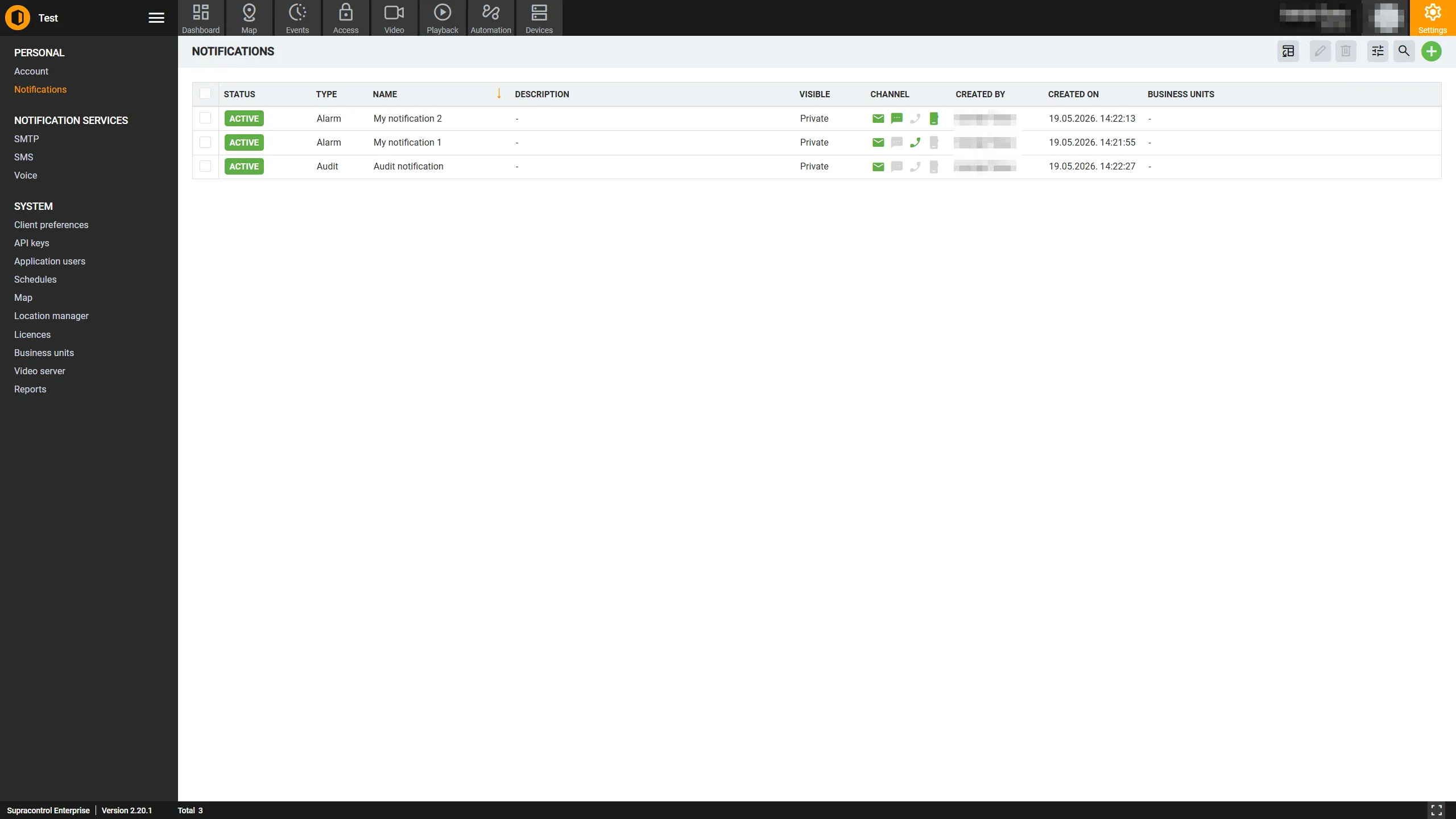
The Application Notifications page lets you create and manage automated alert rules that send messages to specified recipients when defined conditions are met. Notifications are a core feature for real-time awareness of alarms, system activity, and audit events.
Path: Settings → Application Notifications (under the Personal section)
What is a notification?
A notification is a rule that watches for specific events (triggers) and, when those events occur, sends an alert through one or more delivery channels to a set of recipients. Each notification has:
- A type that determines what kind of events it monitors
- Triggers that define exactly which devices, sensors, cameras, or locations are watched
- A schedule that controls when the notification is active
- Recipients - the people or addresses who receive the alert
- Channels - how the alert is delivered
Notification types
| Type | Description |
|---|---|
| Alarm Notification | Triggered by sensor or device alarms - for example, a temperature sensor exceeding a threshold, a door contact opening, or a device going offline |
| Audit Notification | Triggered by system audit events such as user logins, configuration changes, or access control events |
| System Notification | Triggered by system-level events such as server connectivity issues, license expiry warnings, or hardware status changes |
Delivery channels
| Channel | Description |
|---|---|
| Sends an email to the specified recipients. Requires SMTP to be configured in System Settings | |
| SMS | Sends a text message to the specified phone numbers. Requires SMS gateway to be configured |
| Voice | Places an automated phone call to the specified numbers. Requires Voice provider to be configured |
| Mobile Push | Sends a push notification to the Supracontrol mobile app. Available when mobile push is enabled |
| SNMP | Sends an SNMP trap to a configured SNMP receiver. Useful for integration with network monitoring systems |
Notification status
| Status | Description |
|---|---|
| Active | The notification is currently within its valid date range and will fire when triggered |
| Inactive | The notification exists but is outside its active schedule or has been disabled |
| Expired | The notification’s end date has passed and it will no longer fire |
Privacy
| Setting | Description |
|---|---|
| Private | The notification is only visible to its creator |
| Public | The notification is visible to all users who have access to the relevant locations |
Toolbar
| Icon | Tool | Description |
|---|---|---|
 | Add Notification | Opens the dialog to create a new notification rule |
 | Export to Excel | Downloads the current notification list as an Excel file. Disabled when there is no data |
 | Delivery Stats | Opens the delivery statistics panel. Only visible when the delivery stats feature is enabled |
 | Edit | Opens the edit dialog for the selected notification. Disabled when no row is selected or when you do not have permission to edit |
 | Delete | Deletes the selected notification(s). Disabled when no row is selected |
 | Table Settings | Opens the column settings panel to show, hide, or reorder table columns |
A search bar in the toolbar filters the notification list by name, type, or owner as you type.
Notification list table
| Column | Description |
|---|---|
| Name | The notification rule name |
| Type | Alarm, Audit, or System |
| Owner | The user who created the notification |
| Channels | Icons showing which delivery channels are enabled |
| Status | Active, Inactive, or Expired |
| Private | Whether the notification is private or public |
| Created | The date the notification was created |
Business unit scoping
Notifications can be scoped to a specific Business Unit. When scoped, the notification only applies to devices, locations, and users within that Business Unit. BU Admins can only see, create, and manage notifications within their own Business Unit. Administrators and Owners can view all notifications regardless of BU scope.