

API Keys
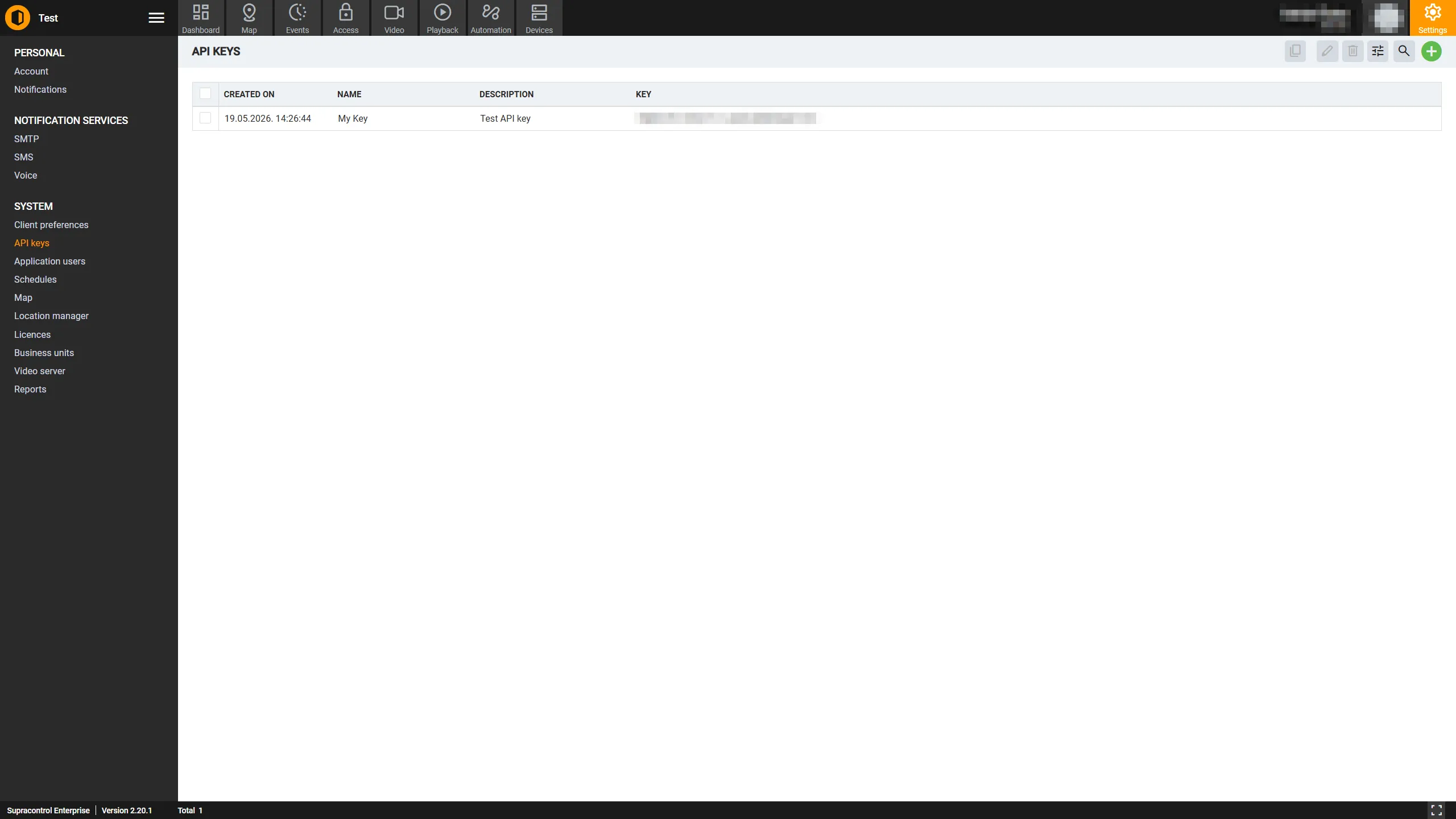
The API Keys page lets you generate authentication tokens that external applications and scripts can use to interact with the Supracontrol API programmatically - without requiring a user to log in interactively.
Path: Settings → API Keys
What is an API key?
An API key is a long, randomly generated secret string that acts as a credential for API calls. When an external system makes a request to the Supracontrol API, it includes the API key in the request headers. API keys are useful for:
- Custom dashboards or monitoring tools that pull data from Supracontrol
- Automation scripts that trigger alarms, query device status, or export reports
- Third-party integrations
Treat API keys like passwords
- Copy the key immediately after creation - the full key value is only shown once
- Store keys in a secure secrets manager, not in plain text files or source code
- Revoke keys that are no longer needed or that may have been exposed
- Create a separate key for each use case - do not share keys between multiple applications
Toolbar
| Icon | Tool | Description |
|---|---|---|
 | Add API Key | Opens the dialog to generate a new API key |
 | Copy to Clipboard | Copies the full key value of the selected key to your clipboard. Disabled when zero or more than one key is selected |
 | Edit | Opens the edit dialog to rename the selected key or update its description. Disabled when zero or more than one key is selected |
 | Delete | Permanently revokes and deletes the selected API key. Disabled when zero or more than one key is selected |
 | Table Settings | Opens the column visibility panel. Disabled when there is no data |
A search bar is available to filter keys by name or description.
API keys table
| Column | Description |
|---|---|
| Name | The display name given to this key |
| Description | An optional note about what this key is used for |
| Created | The date and time this key was generated |
| Key | A masked preview of the key value. The full value is only accessible via the Copy button or immediately after creation |
Create an API key
Open the API Keys section
Go to Settings → API Keys.
Open the creation dialog
Click the Add API Key button in the toolbar.
Fill in the key details
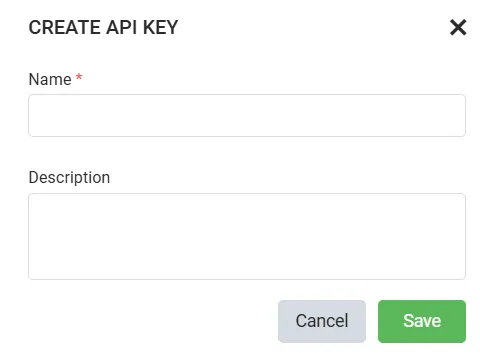
| Field | Required | Description |
|---|---|---|
| Name | Yes | A descriptive label for this key (e.g. “Dashboard Integration”, “Backup Script”) |
| Description | No | Optional notes about what this key is used for or who manages it |
Save and copy the key
Click Save. The full API key value is displayed immediately after creation - copy it now. It will not be shown in full again. After closing the creation dialog, only a masked preview is visible in the table.
Copy an API key value
If you need to retrieve a key value after creation:
Select the key row
Click the key row in the table.
Copy to clipboard
Click the Copy to Clipboard button in the toolbar. The key value is copied - paste it where needed.
Edit an API key
You can update the name and description of a key without regenerating it:
Select the key row
Click the key row you want to rename.
Open the edit dialog and save
Click Edit in the toolbar, update the Name and/or Description, and click Save.
Revoke (delete) an API key
When a key is no longer needed or may have been compromised, revoke it immediately:
Select the key row
Click the key row you want to revoke.
Delete and confirm
Click Delete in the toolbar and confirm the deletion.
Deletion is immediate and irreversible
Any application or script using the deleted key will immediately lose API access. Update those integrations with a new key before deleting the old one when possible.
Using an API key
Include the API key in your API requests using the ApiKey request header:
GET /api/devices HTTP/1.1Host: your-supracontrol-instance.comApiKey: your-api-key-value-hereRefer to the Supracontrol API documentation for the full list of available endpoints and request formats.