

Video Servers
The Video Server page lets you connect Supracontrol to external Video Management Systems (VMS) - the software that manages IP cameras and video streams. Once connected, cameras from the VMS become available within Supracontrol for live viewing, playback, and event correlation.
Path: Settings → Video Server
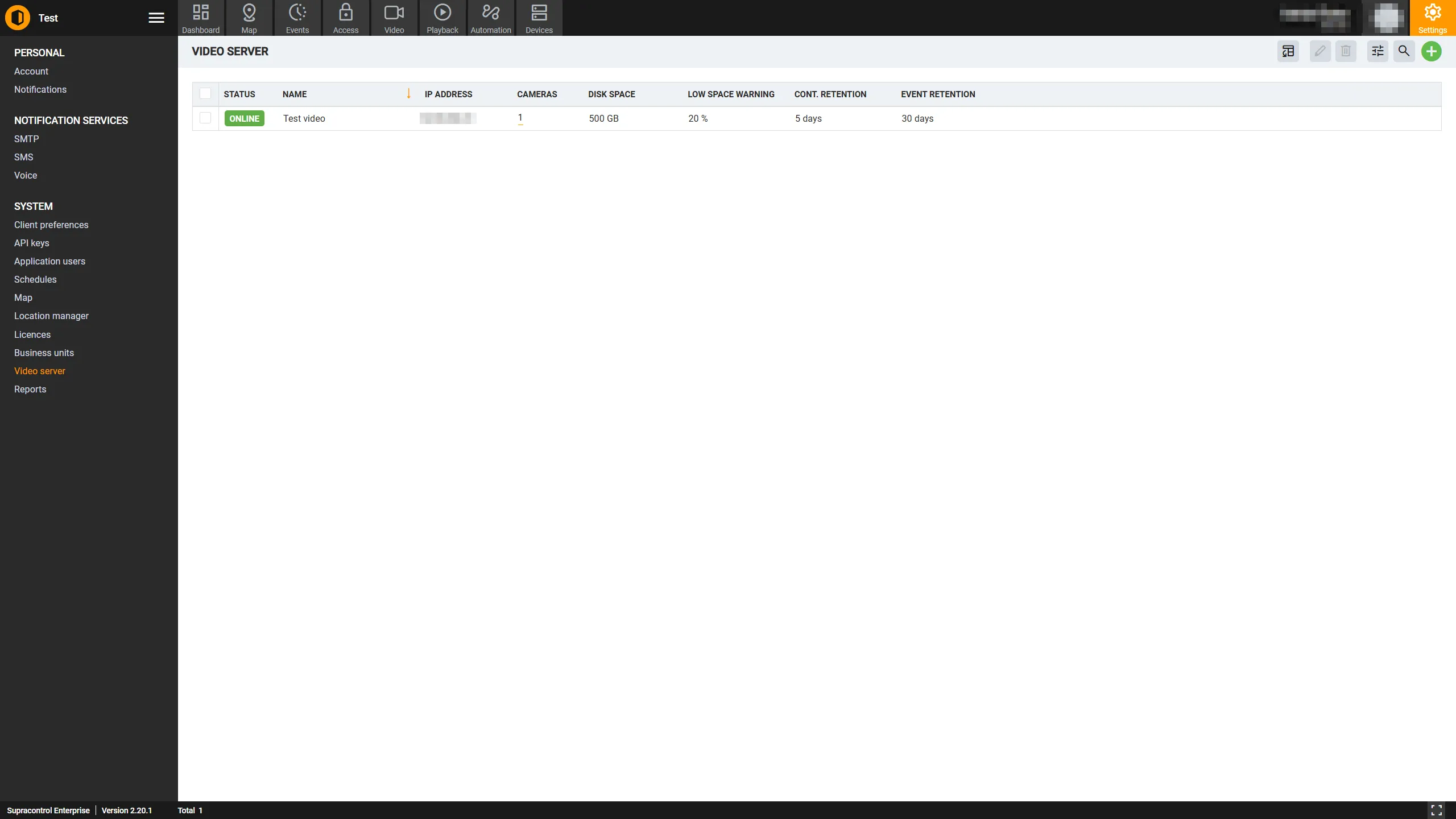
Video server status
| Status | Description |
|---|---|
| Online | Supracontrol successfully connected to the video server and is actively communicating with it |
| Offline | Supracontrol cannot reach the video server. Check the connection details and that the VMS is running |
Toolbar
| Icon | Tool | Description |
|---|---|---|
 | Add Video Server | Opens the dialog to configure a new video server connection |
 | Export to Excel | Downloads the video server list as an Excel file. Disabled when there is no data |
 | Edit | Opens the edit dialog for the selected video server. Disabled when zero or more than one server is selected |
 | Delete | Removes the selected video server and its camera integrations. Disabled when zero or more than one server is selected |
 | Table Settings | Opens the column visibility panel. Disabled when there is no data |
A search bar is available to filter the server list.
Video server list
| Column | Description |
|---|---|
| Name | The display name given to this video server |
| Status | Online or Offline connection indicator |
| Cameras | The number of cameras retrieved from this server. Click the number to open a detailed camera list |
| Retention | The video retention period configured on this server (in days) |
Add a video server
Open the Video Server section
Go to Settings → Video Server.
Open the creation dialog
Click the Add Video Server button in the toolbar.
Fill in the general settings
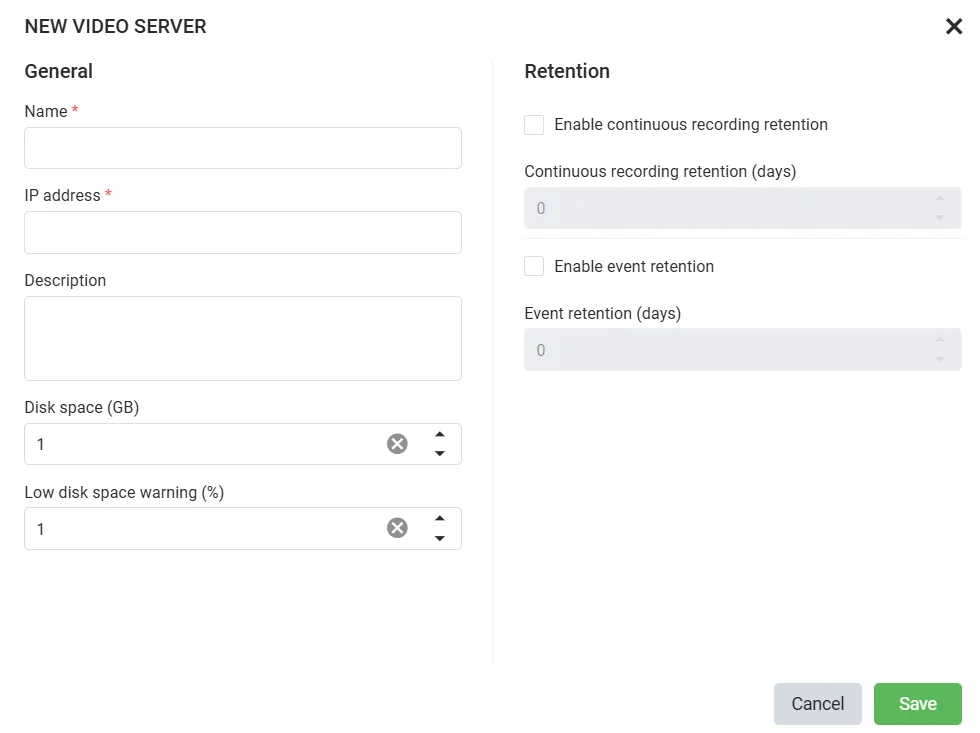
| Field | Required | Description |
|---|---|---|
| Name | Yes | A display name for this server - e.g. “NVR - Building A” |
| IP address | Yes | The IP address of the VMS server |
| Description | No | Optional notes about this server |
| Disk space (GB) | No | Total storage allocated to this VMS. Used for monitoring and reporting |
| Low disk space warning (%) | No | Supracontrol raises an alert when free space drops below this threshold |
Configure retention (optional)
The Retention panel on the right controls automatic video purging:
| Setting | Description |
|---|---|
| Enable continuous recording retention | When ticked, continuous recordings older than the specified number of days are automatically deleted |
| Continuous recording retention (days) | How many days of continuous footage to keep |
| Enable event retention | When ticked, event-triggered recordings older than the specified number of days are automatically deleted |
| Event retention (days) | How many days of event footage to keep |
Leave both toggles off if you do not want Supracontrol to manage video purging automatically.
Save
Click Save. Supracontrol will attempt to connect to the VMS and retrieve its camera list. If the connection succeeds, the server’s status shows Online and the Cameras count reflects the number of cameras found.
Edit a video server
Select the server
Click the server row in the table.
Open the edit dialog
Click Edit in the toolbar. Update the connection details as needed.
Save
Click Save.
Viewing cameras on a video server
To see the cameras available on a specific video server, click the number in the Cameras column. A modal opens showing the full list of cameras retrieved from that server, including their names and assignment status within Supracontrol.
Delete a video server
Select the server
Click the server row you want to remove.
Delete and confirm
Click Delete in the toolbar and confirm the deletion.
Deletion removes camera integrations
Deleting a video server removes its integration with Supracontrol. Cameras from that server will no longer be accessible in the Map and Video modules. Update any notifications or alarm rules that referenced those cameras.
Troubleshooting connection issues
If a server shows Offline:
| Problem | Solution |
|---|---|
| VMS software not running | Confirm the VMS is running on the target server |
| Wrong IP address | Double-check the IP address in the edit dialog |
| Firewall blocking | Ensure network traffic is allowed between Supracontrol and the VMS |
Save the server settings again after making corrections - Supracontrol will retry the connection immediately.