

SMTP Settings
The SMTP Settings page configures the outgoing email server that Supracontrol uses to send email notifications, scheduled reports, and system messages.
Path: Settings → SMTP (under System Settings)
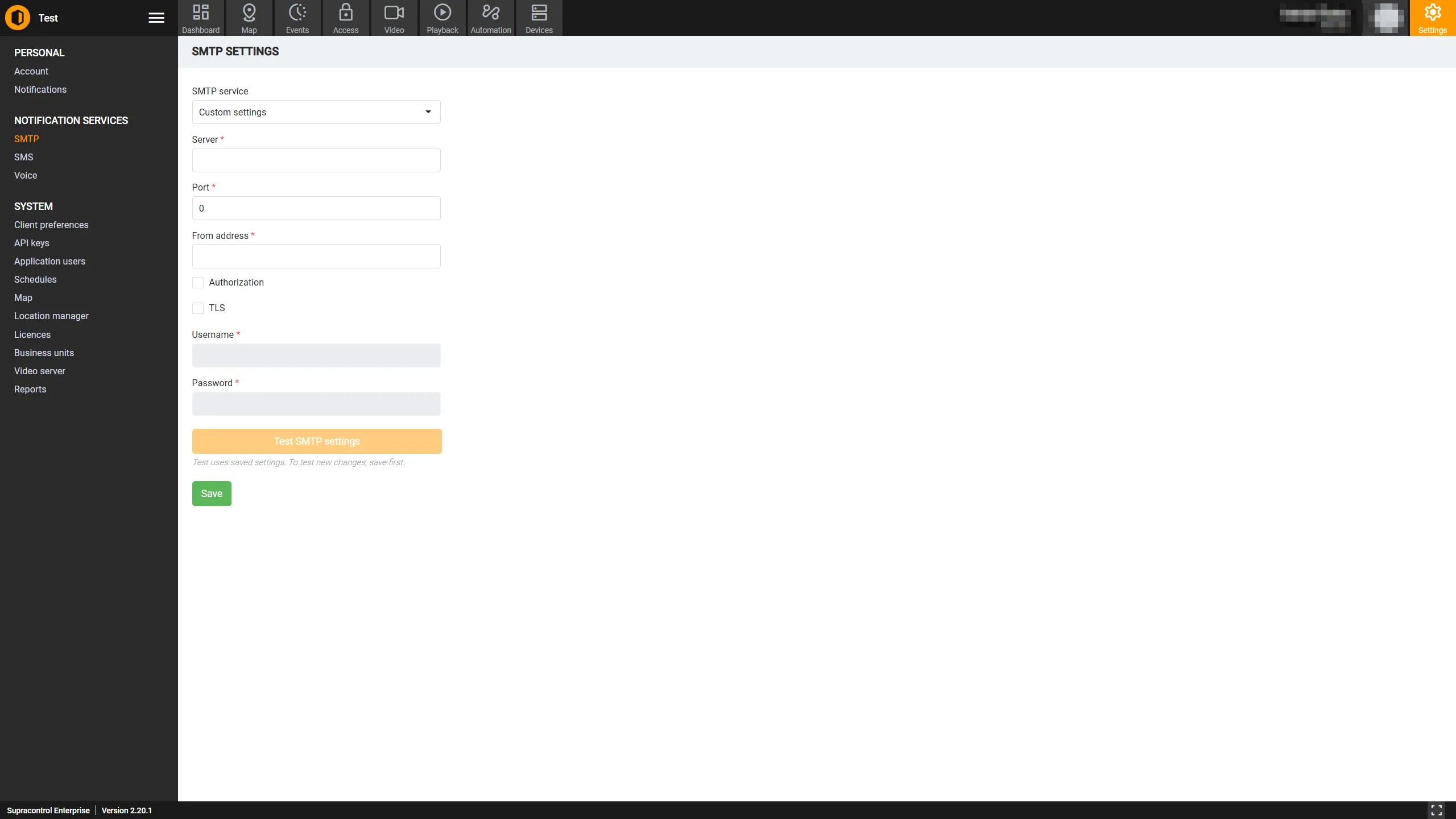
Mail service mode
| Option | Description |
|---|---|
| Disabled | Email delivery is turned off. No emails will be sent from Supracontrol regardless of notification settings |
| Supracontrol Service | Use the managed email service provided by Supracontrol (available on qualifying deployments). No custom configuration is required |
| Custom | Configure your own SMTP server. Use this option to connect Supracontrol to your organisation’s email infrastructure or a third-party mail provider |
Custom SMTP fields
These fields are only relevant when the mail service mode is set to Custom.
| Field | Required | Description |
|---|---|---|
| Server | Yes | The hostname or IP address of your SMTP server (e.g. smtp.office365.com, smtp.gmail.com) |
| Port | Yes | The port number your SMTP server listens on. Common values: 25 (unencrypted), 465 (SSL), 587 (STARTTLS) |
| From | Yes | The sender email address that will appear in the “From” field of all outgoing emails |
| Authorization | Yes | Whether SMTP authentication is required. Most modern mail servers require this |
| TLS | No | Whether to use TLS encryption. Recommended for security |
| Username | Yes (when Auth enabled) | The username for authenticating with the SMTP server |
| Password | Yes (when Auth enabled) | The password for the SMTP account |
Testing the configuration
After filling in the custom SMTP fields, verify the configuration before saving:
Click Test
Click the Test button. A dialog opens asking for a test email recipient address.
Enter a recipient and confirm
Enter an email address and confirm. Supracontrol will attempt to send a test email using the provided settings.
Check the inbox
Check the recipient’s inbox (and spam folder) to confirm delivery.
Saving the configuration
Click the Save button at the bottom of the page to apply the settings. The Save button is disabled if no changes have been made to the current configuration.
Common provider settings
Gmail
| Setting | Value |
|---|---|
| Server | smtp.gmail.com |
| Port | 587 |
| TLS | Yes |
| Auth | Yes |
| Username | your-gmail@gmail.com |
| Password | App password (not your main Gmail password) |
Microsoft Office 365 / Exchange Online
| Setting | Value |
|---|---|
| Server | smtp.office365.com |
| Port | 587 |
| TLS | Yes (STARTTLS) |
| Auth | Yes |
| Username | your-account@yourdomain.com |
| Password | Account password or app password |
SendGrid
| Setting | Value |
|---|---|
| Server | smtp.sendgrid.net |
| Port | 587 |
| TLS | Yes |
| Auth | Yes |
| Username | apikey |
| Password | Your SendGrid API key |
Troubleshooting
| Problem | Likely cause | Solution |
|---|---|---|
| Test email not received | Wrong server or port | Double-check server address and port number |
| Authentication failed | Wrong credentials | Verify username and password; check if the account requires an app password |
| TLS error | TLS/port mismatch | Try port 587 with TLS enabled, or port 25 without TLS |
| Emails go to spam | Missing SPF/DKIM | Work with your IT team to configure SPF and DKIM DNS records for the From address |
| Connection timed out | Firewall blocking | Ensure the Supracontrol server can reach the SMTP server on the configured port |