

Client Licenses
The Client Licenses page shows the software licenses active on your Supracontrol installation. Licenses control how many devices, cameras, and other billable resources your system can manage. This page also provides tools to activate new licenses and review historical activation records.
Path: Settings → Client Licenses
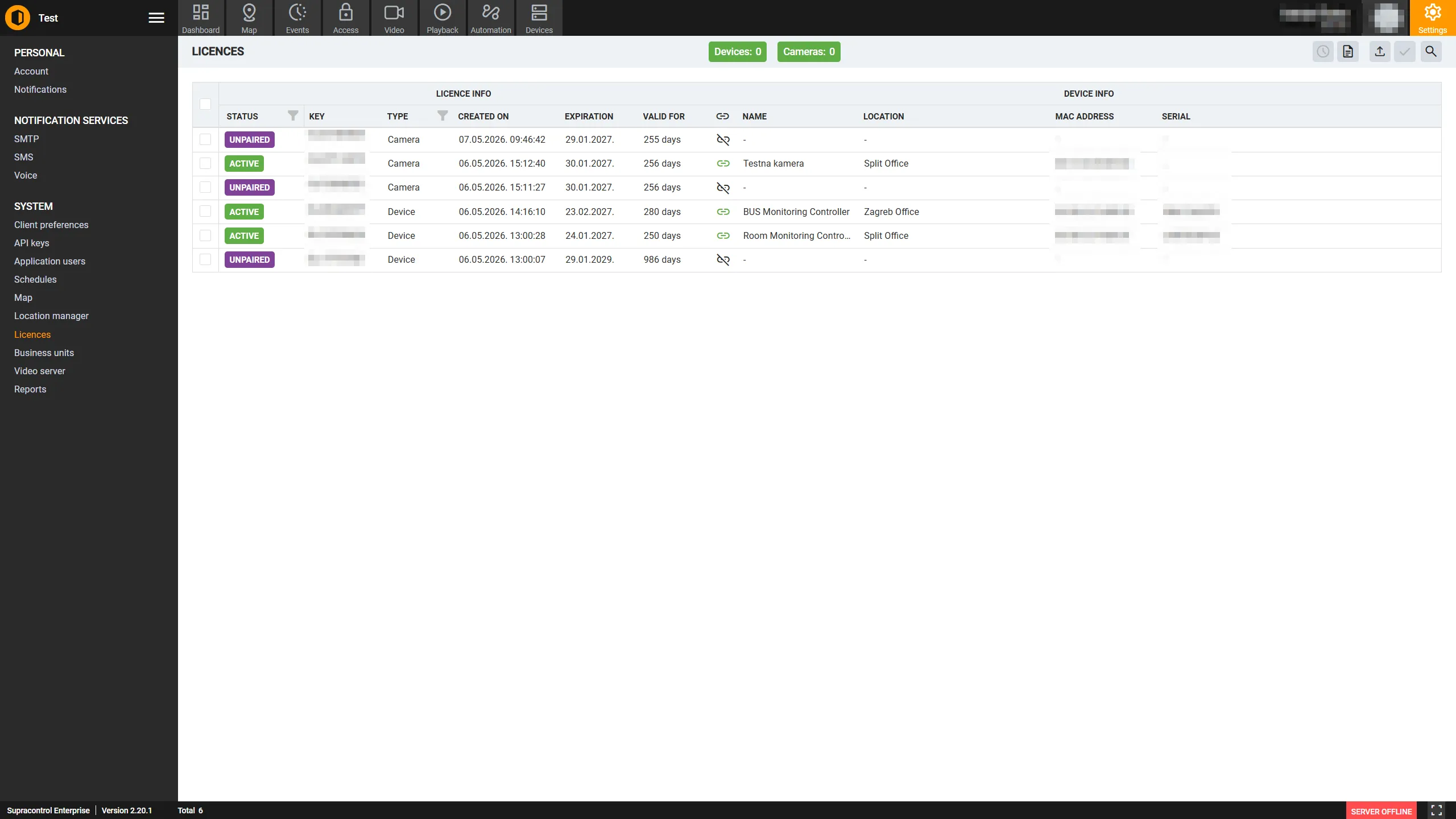
Available license counters
At the top of the page, Supracontrol displays two real-time counters:
| Counter | Description |
|---|---|
| Available Device Licenses | The number of additional devices that can be added to the system under the current license |
| Available Camera Licenses | The number of additional cameras that can be connected under the current license |
These counters decrease as you add devices or cameras and increase when you activate additional licenses.
License table
| Column | Description |
|---|---|
| Name / Type | The license type or product name (e.g. “Device License Pack”, “Camera License Bundle”) |
| Quantity | The number of units (devices or cameras) included in this license |
| Activated On | The date this license was activated |
| Valid Until | The expiry date, if applicable. Permanent licenses show no expiry |
| Status | Whether the license is currently active, expired, or pending |
Toolbar
| Icon | Tool | Description |
|---|---|---|
 | License History | Opens a detailed history log for the selected license entry. Disabled when zero or more than one license is selected |
| Activators History | Opens a log of all activator files ever uploaded to this system. Always enabled |
 | Upload Activator File | A file picker button for uploading a license activator file received from Supracontrol support |
 | Activate | Processes the uploaded activator file and applies the license. Disabled until an activator file has been selected |
Activate a new license
When you purchase additional licenses, Supracontrol support provides an activator file.
Open Client Licenses
Go to Settings → Client Licenses.
Upload the activator file
Click the Upload Activator File button in the toolbar. In the file picker dialog, select the activator file provided by Supracontrol support. After selecting the file, it is staged for activation.
Activate
Click the Activate button to process the file. Supracontrol communicates with the license server to validate and apply the activation.
Verify
On success, the new license appears in the table and the Available License counters update to reflect the new capacity.
View license history
To view the full history of a specific license:
Select the license row
Click the license row in the table.
Open License History
Click the License History button in the toolbar. A dialog opens showing a chronological log of activations, renewals, and changes for that license entry.
View activators history
The Activators History log shows a complete record of all activator files ever uploaded to this system. Click the Activators History button in the toolbar - a dialog opens with a table of all past uploads, including timestamps and status. This is useful for auditing when licenses were applied and which operator performed each activation.
License expiry
Some license types have an expiry date. When a license expires, the features or resource counts covered by that license are no longer available. Monitor the Valid Until column and system notifications for license expiry warnings to ensure uninterrupted service.
Troubleshooting
| Problem | Likely cause | Solution |
|---|---|---|
| Activate button stays disabled after upload | File format not recognised | Ensure you are using the activator file exactly as provided - do not rename or extract it |
| Activation fails with “License server unreachable” | No internet connection | Check that the Supracontrol server has outbound internet access; contact support for offline activation |
| Available counters did not increase after activation | Wrong activator file | Verify with Supracontrol support that the activator file matches your deployment’s unique ID |
| License shows as expired immediately | Wrong date/time | Verify the server’s system clock is set correctly; license validation uses the server time |