

Map Settings
The Map Settings page controls which map provider is displayed in the Supracontrol Map module and other areas of the application that show geographic data.
Path: Settings → Map Settings
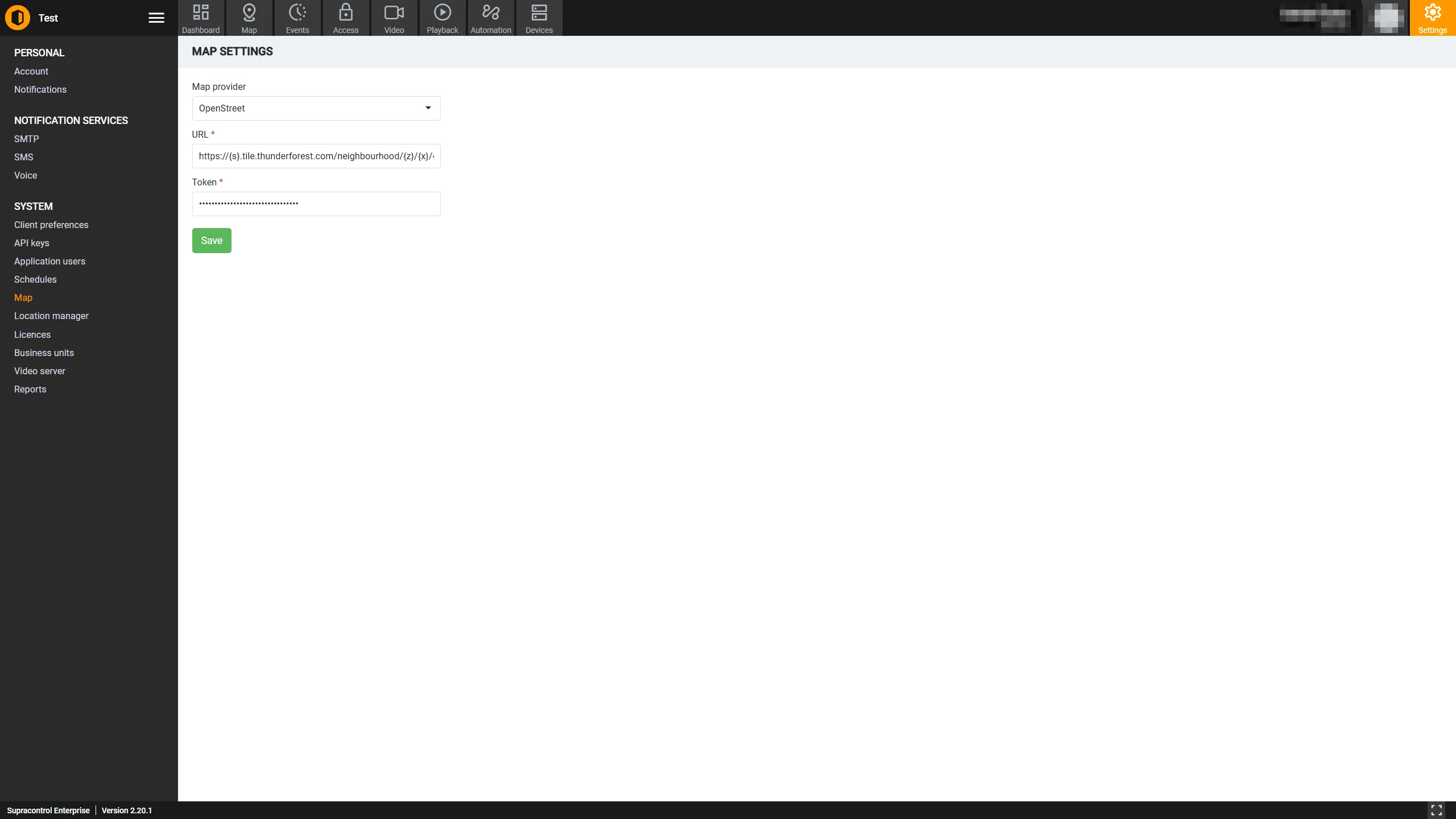
Map provider options
| Provider | Description |
|---|---|
| OpenStreetMap | A free, community-maintained map. No API key required. Best for deployments without a Google Maps licence or for air-gapped environments |
| Google Maps | Google’s commercial map service. Requires a valid Google Maps API key. Offers richer map data, satellite imagery, and Street View |
Map settings fields
| Field | Required | Description |
|---|---|---|
| Provider | Yes | Select the map provider: OpenStreetMap or Google Maps |
| URL | Yes | The tile URL for the selected provider. For OpenStreetMap, this is the tile server URL (e.g. https://{s}.tile.openstreetmap.org/{z}/{x}/{y}.png). For Google Maps, this is the Maps JavaScript API endpoint |
| Token | Yes | The API key or access token for the selected provider. This field is masked for security |
Switching map providers
Open Map Settings
Go to Settings → Map Settings.
Select the provider
In the Provider dropdown, select the desired map provider. The URL and Token fields update to reflect the selected provider’s requirements.
Fill in the URL and Token
Update the URL and Token fields for the selected provider.
Save
Click Save. After saving, the new map provider takes effect immediately across the application.
Getting a Google Maps API key
If you choose Google Maps, you need a valid API key from Google Cloud Console:
Create or select a Google Cloud project
Go to the Google Cloud Console and create a project or select an existing one.
Enable the Maps JavaScript API
Enable the Maps JavaScript API (and optionally the Maps Static API and Geocoding API) for your project.
Create an API key
Navigate to Credentials → Create Credentials → API Key. Copy the API key.
Paste the key into Supracontrol
Paste the API key into the Token field in the Map Settings page and click Save.
Troubleshooting
| Problem | Likely cause | Solution |
|---|---|---|
| Map shows as blank/grey tiles | Invalid or expired API key | Verify the Token field contains a valid, active API key |
| Google Maps shows “For development purposes only” | Billing not configured | Enable billing in Google Cloud Console for the project |
| Map tiles not loading | Incorrect tile URL | Verify the URL format matches the tile server’s expected pattern |
| Map works in one browser but not another | Browser caching | Clear the browser cache after changing providers |